
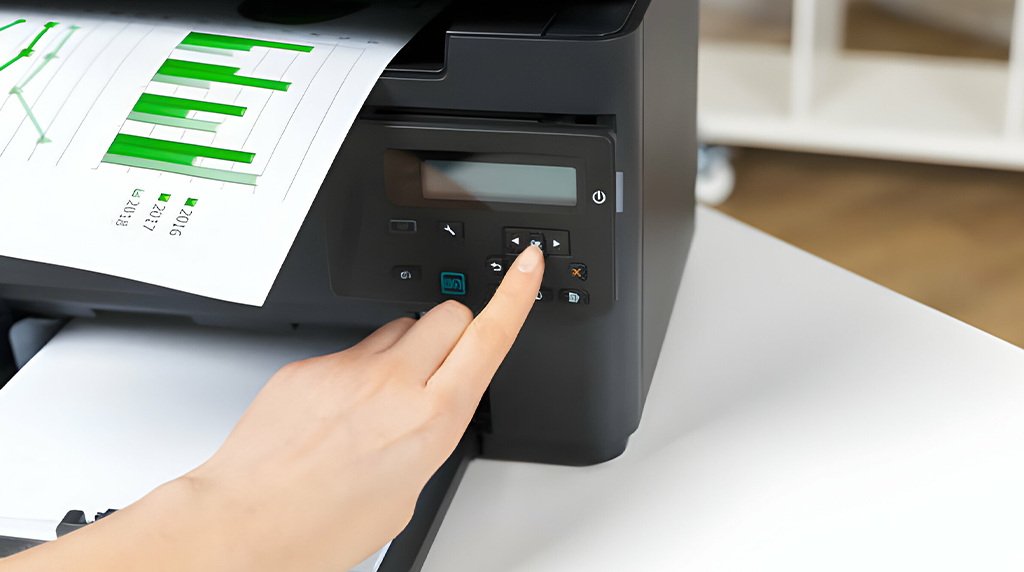
How to setup new Printer
Setting up a new printer is a simple process if you follow the correct steps. Begin by unboxing the printer and removing all protective materials, including tapes and packaging from inside and outside the device. Place the printer on a flat, stable surface near a power source and within range of your computer or Wi-Fi router. Plug in the power cable and turn on the printer. Next, install the ink cartridges or toner provided with the printer and load paper into the input tray according to the instructions.
After the basic setup, proceed with connecting the printer to your device. For a wired setup, use a USB cable to connect the printer directly to your computer. For a wireless setup, go to the printer’s control panel and access the “Wi-Fi Setup” or “Network Settings” option. Select your Wi-Fi network from the list and enter the password carefully. Once connected, the printer should display a confirmation message or show a Wi-Fi icon indicating a successful connection.
The final step is installing the necessary drivers or software on your computer or mobile device. You can usually do this using the installation CD that comes with the printer or by downloading the latest software from the manufacturer’s official website. Follow the on-screen instructions to complete the installation and add the printer to your system. After setup, print a test page to ensure everything is working correctly. If you encounter any issues, restarting the printer, checking connections, or updating drivers can help resolve common setup problems quickly.
After connection, install any necessary drivers or software provided by the manufacturer. This step ensures that your computer can communicate properly with the printer and access advanced functions such as scanning, duplex printing, or print quality adjustments. Once installed, run a test print to confirm that everything is functioning correctly.
Finally, configure printer settings according to your preferences, including paper size, print quality, and default printer selection. Regular maintenance, such as keeping the printer clean and updating drivers, ensures long-term reliability. Properly setting up a new printer saves time, prevents errors, and provides a smooth printing experience for both home and office use.
This step-by-step setup ensures your printer is ready to deliver high-quality prints efficiently.


