
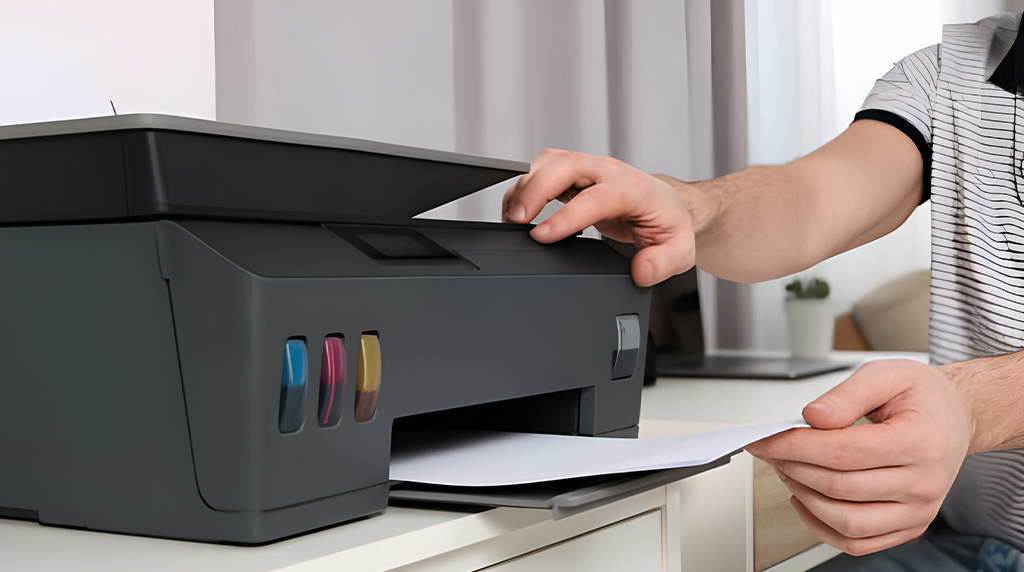
How to fix printer not recognized by computer
If your printer is not recognized by your computer, don’t worry—this is a common issue that can be fixed with a few simple steps. First, check all physical connections. Ensure the USB cable is securely connected to both the printer and the computer. If you are using a wireless printer, make sure your device is connected to the correct Wi-Fi network. Sometimes, a faulty cable or weak Wi-Fi signal can prevent the computer from detecting the printer.
Next, restart both your printer and computer. This often refreshes the system and resolves minor glitches. After restarting, check if the printer appears in your computer’s “Devices and Printers” or “Printers & Scanners” settings. If the printer still isn’t recognized, the issue may be related to the printer driver. Outdated, missing, or corrupt drivers can prevent your computer from detecting the device. Visit the printer manufacturer’s official website, download the latest driver compatible with your operating system, and install it carefully.
Additionally, check for system updates, as missing updates can sometimes block printer recognition. If using a USB connection, try plugging the printer into a different USB port or using a different cable. For network printers, ensure the IP address matches the printer’s network settings. Running the built-in printer troubleshooter on Windows or macOS can also help automatically detect and fix the problem. Following these steps usually restores connectivity, allowing your printer to function normally and ensuring smooth, uninterrupted printing.
This guide ensures your printer is recognized quickly, saving time and avoiding frustration.


